
As you may know, the WordPress Media Library holds all of your images, videos, documents, and audio clips. As such, it’s an important element of your website. Unfortunately, there are times when the Media Library needs a little help to function as it should.
The most common reasons your Media Library has stopped working properly are incompatible plugins and/or themes, and improperly set file permissions. Fortunately, they can likely be resolved simply and quickly.
In this post, we’ll introduce the various issues you may experience when using the WordPress Media Library. We’ll then show you how to solve each one so you can get back to running your website. Let’s get started!
WordPress Media Library Not Loading
As stated, the most common reason your Media Library isn’t loading is due to an incompatible or poorly coded WordPress plugin or theme. When using plugins and themes from the WordPress Directory, this typically shouldn’t be a problem. However, third-party software or accidental coding issues can cause your Media Library to malfunction.
First, we recommend you test out your plugins. Navigate to Plugins > Installed Plugins within WordPress. Select the top checkbox next to Plugin (to select all plugins) and choose Deactivate from the Bulk Actions drop-down menu. Click Apply, then return to your Media Library:
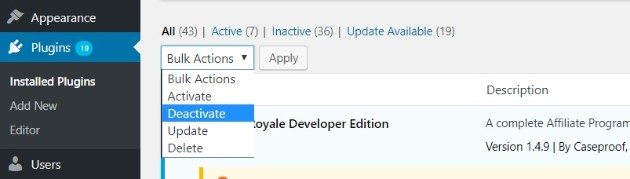
If it loads, one of your plugins is the issue. Unfortunately, there’s no easy way to tell which one. You’ll have to reactivate each plugin individually and check your Media Library each time. Once the library stops loading again, the plugin you’ve just activated is the problem.
If plugins aren’t the problem, your theme may be. To test this out, go to Appearance > Themes. Activate a different theme than the one you have currently set (don’t worry, your current theme’s settings will be saved). If the Media Library now works, the theme was the issue. If not, it may be a deeper problem.
At this point, you’ll want to speak with the developer in the first instance to determine if there’s a fix. If the plugin or theme is vital to your workflow, you may need to seek out an alternative.
It’s also good to speak with your host. With providers such as WP Engine, knowledgeable staff can look at your installation more closely and root out any problems.
WordPress Media Library Not Showing Images
If your Media Library is loading but not showing images, there are two primary causes: an incompatible plugin, and improper file permissions. Testing plugins follows the same advice as above, and if they’re not the cause, file permissions may be.
To reconfigure them, you’ll need access to a File Protocol Transfer (FTP) manager such as FileZilla, and potentially brush up on your skills if you need to.
Once you’re set, navigate to wp-content within the server screen of FileZilla, and right click on /uploads/. Select File permissions and set the Numeric value to 744:
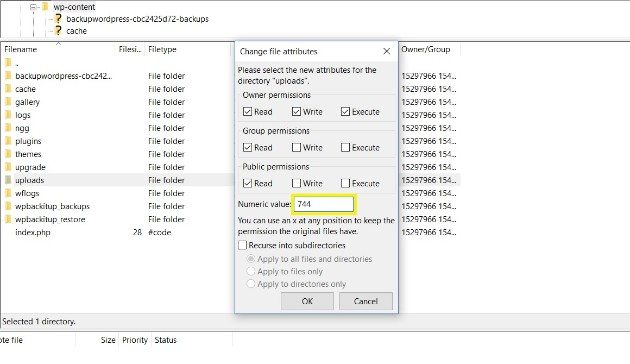
In short, this provides Read access for everyone, but Write and Execute access for the owner (i.e. you). You’ll also need to check the box next to Recurse into subdirectories, and select the radio button next to Apply to directories only:
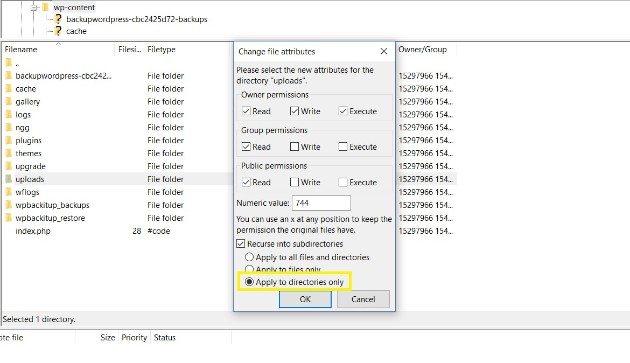
Click OK, then return to the /uploads/ folder. Right click, and once again select File permissions. However, this time set Numeric value to 644, select the box next to Recurse into subdirectories, and select Apply to files only:
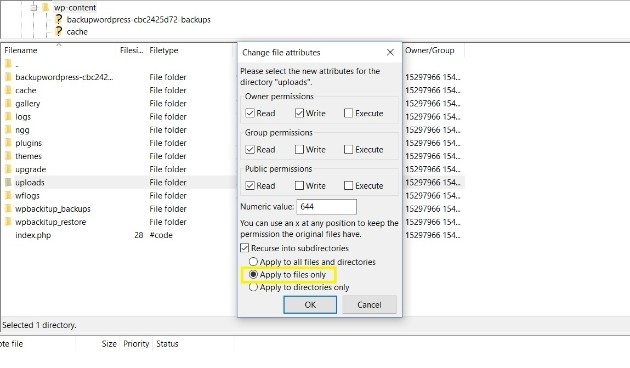
The difference here is that nobody gets Execute access for files. Essentially resetting the file permissions to default should sort the issue.
WordPress Media Library Grid View Not Working
When adding a previously uploaded image to your pages or posts, you’ll be working with what’s known as Grid View. It’s a way for you to view your media in a quick-view format.
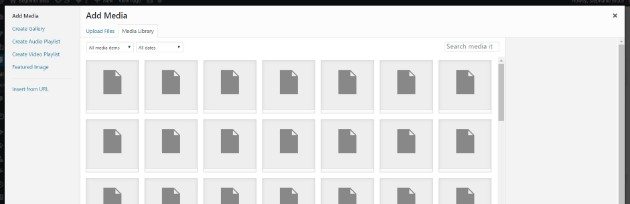
If the Grid View isn’t working, adding images to your site could become tedious. However, you can likely fix the issue in one of two ways. Fortunately, we’ve already gone through the exact steps.
Quite often, an incompatible plugin or incorrect file permissions are the primary causes here. You can try the steps outlined above, but if these don’t work, it’s best to contact the developer of any incompatible plugin, or your hosting provider for further troubleshooting.
WordPress Media Library Search Not Working
A packed Media Library means it’s important to have a quick and easy search option. If you’re having trouble finding files with the Media Library’s built-in search, there are a few reasons to consider.
Firstly, there could be a simple caching issue, which can be solved by clearing your cookies and cache. Alternatively, it could be caused by an incompatible plugin – the steps for which we’ve already outlined. Whatever the cause, there are alternatives that provide advanced ways to organize and search your media content.
One option is Enhanced Media Library, a plugin that upgrades the current WordPress Media Library setup:
Using this plugin, you can categorize your current and future media. You can also search your uploaded media using the plugin, and bypass the Media Library search feature altogether.
WordPress Media Library Thumbnails Not Showing
Thumbnails – i.e. reduced-size versions of media – can provide you with an at-a-glance look at your library’s content. Though, there are a few reasons your thumbnails may not display, much in the same way as the images themselves.
As you outlined within a few previous sections, the cause is usually plugins-related, or improperly set file permissions. You’ll find that these solutions are your go-to options for troubleshooting any display issues you have with the Media Library.
WordPress Media Library Organization & Clean Up
Even if you aren’t currently having trouble with your setup, excessive files can make it difficult to organize and find the media you need. As such, regular organization and clean up of your Media Library is beneficial.
To organize your current media, you can use a plugin. Enhanced Media Library, as mentioned above, is a good option. However, other choices are available.
For example, Media Library Folders makes it easy to create actual folders within your WordPress Media Library. The drag-and-drop interface makes it simple to copy and move files, and you can also rename or delete them as you see fit:

By keeping your media files to a minimum, you reduce server load. This ensures your website loads faster for visitors, and the back end runs smoothly for you.
WP Engine for Media Sites
Is your current host unable to handle your multimedia needs? With WP Engine, we offer reliable uptime and site speeds. This contributes to a great digital experience for visitors, but it also makes it easier to manage media on your back end.
Additionally, our WordPress knowledgeable staff can help you to fix any problems that arise. With 24/7 support access, you can’t go wrong with WP Engine!
To learn more about our offerings, check out our managed hosting plans!