

When you want to direct users to your website, you’ll use what’s known as a permalink. This is a URL comprised of your site’s domain name, as well as a slug (the part of the URL at the end, which generally describes the content). The way permalinks are structured greatly influences their effectiveness.
While permalinks are ‘permanent’ by nature, they can be changed if necessary. When done properly, this type of change can reap major benefits for your website, including a boost in search engine rankings and an increase in site traffic.
In this post, we’ll introduce you to permalinks and their purpose. We’ll then discuss the structure of permalinks, and show you how to change them on the WordPress back end. Let’s get started!
What Is a Permalink?
A permalink is a “permanent hyperlink” to a specific web page. It’s ‘permanent’ because the link isn’t meant to be changed, as this would create dead links.
Most permalinks look like this:
https://www.mywebsite.com/blog/blog-post-1
Aside from directing users to the specific web page, permalinks also tell users what the page contains (for example, a blog post).
WordPress Permalinks?
Each Content Management System (CMS) has its own way of structuring permalinks – including WordPress. For example, when you create a new post in WordPress, one of the standard permalink structures is:
http://www.mywebsite.com/2018/02/sample-post/
This tells users that the post was created in February of 2018, and includes the name of the content (sample-post).
One of the great things about implementing permalinks in WordPress is that you have the ability to alter their structure. In the WordPress dashboard, navigate to Settings > Permalinks. Here, you can choose from a variety of different structures:
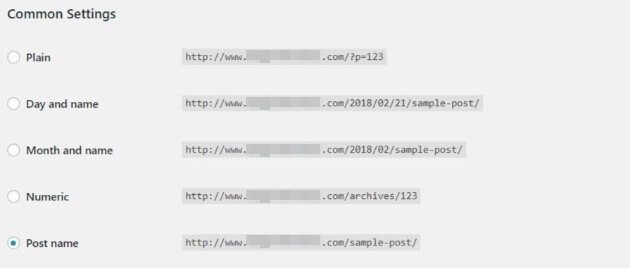
Although the WordPress permalink settings do provide a variety of options to choose from, frustrations may arise if you wish to use a different combination. For example, what if you want to include the year the post was published and the name, but not the day or month? Fortunately, this problem can be solved with the use of WordPress custom permalinks.
WordPress Custom Permalinks/URL Structure
There are two ways to create custom permalinks in WordPress. The first changes the URL structure, while the second enables you to alter individual page or post URL slugs.
To change the overall structure, return to Settings > Permalinks. Click the radio button next to Custom Structure, and select the tags you’d like to include:

Once you’re done, hit Save Changes. Now all posts on your WordPress site will follow this new structure.
If you’d like to alter the URL slug for individual posts and pages, the process is also simple.
On the back end of your website, open the editor for the page or post in question. Below the title, you’ll see its Permalink:
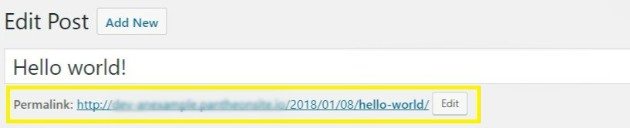
Simply click on Edit, and change the end of the URL to whatever you’d like.
You can change this permalink before or after posting the content, but it’s highly recommended not to alter it afterwards unless absolutely necessary. This can make all uses of the old URL result in errors. You’ll need to set up URL redirection to avoid that issue (we’ll cover how to do this later).
Parent/Child Pages
Another aspect that can impact URL structure is parent/child pages. These are pages that follow a particular hierarchy on your website.

For example, when you visit a ‘regular’ or parent web page, the URL structure is as follows:
www.mywebsite.com/web-page
However, when you visit a child page, there is an additional element to the URL structure. For example:
www.mywebsite.com/parent-page/child-page
This is known as a breadcrumb, which helps your reader understand exactly where they are on your website and how to return to any previous sections (such as the parent page).
While you can remove the parent-page aspect of the URL by using WordPress plugins, it’s best to keep it intact. This is for the benefit of your users, as well as search engines.
How URL Structure Affects SEO
For many internet users, it may be surprising to learn that the URL structure for each page and post can impact the search engine ranking of your entire website. This is because a strategically created permalink can help each page rank higher on Search Engine Results Pages (SERPs).
You can also replace a post or page name with a keyword that matches its title, tags, and/or content. For example, a typical post’s URL may be:
www.mywebsite.com/8-ways-to-get-your-day-started-right
While this contains the post title, it isn’t targeting your audience as effectively as it could. Instead, you could use a long-tail keyword associated with the content, such as:
www.mywebsite.com/optimize-your-morning-routine
In short, you’ll want to keep your URL structure as simple as possible. This includes avoiding the use of dynamic parameters whenever possible. Additionally, you’ll notice hyphens (sometimes referred to as dashes) are used to split words within the URL. This is done for the benefit of search engines and humans alike, and is an important best practice to follow.
WordPress URL Redirection
As we mentioned earlier, permalinks are named for their typically permanent nature. However, it isn’t always possible to keep a web page’s URL from changing. Fortunately, there’s an easy way to solve this problem.
URL redirection is a process where any attempts to locate your old URL are redirected to the new address. You can set up these redirections easily, with the help of various WordPress plugins such as Redirection. This tool uses 301 redirects to automatically divert internet users from the old URL to the new one. This helps ensure that no website traffic is lost due to a broken link.
Get Support for Permalinks/URLs from WP Engine
Would you like to learn more about WordPress permalinks and how to edit them effectively? Subscribe to the WP Engine blog for free resources and learning guides, or take a look at our various managed hosting plans.
The reliability and stellar support offered by our team is second to none. With WP Engine on your side, your website will always be at the top of its game!