OVERVIEW
The wp-content folder is the default location where WordPress stores media and resources such as images, themes, and plugins. To complete the content migration you will need to transfer the wp-content folder from the old host to WP Engine.
DOWNLOAD WP-CONTENT
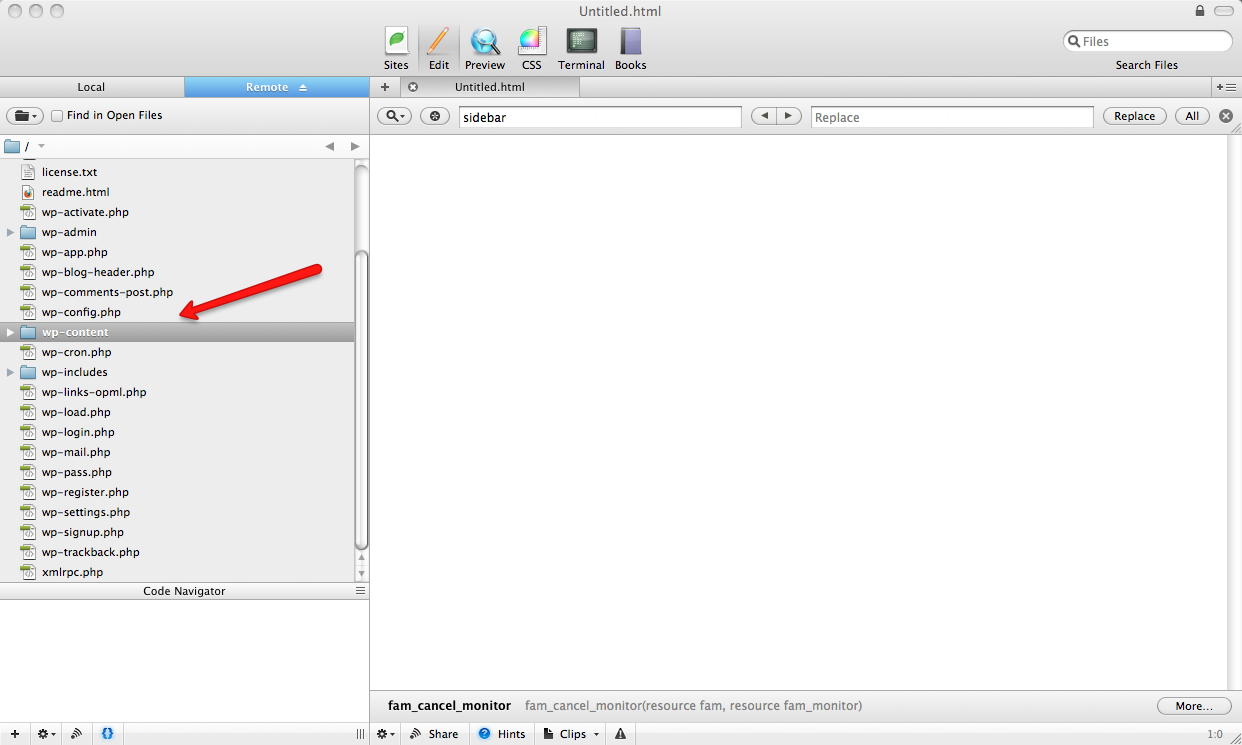
Connect via FTP to the server where you website is currently hosted. If you’re not sure what is your connection information such has host name, username, and password, contact your web hosting company for assistance. The wp-content folder is in the root of the WordPress installation. It’s in the same location where you would also find wp-admin, and wp-includes. Download the wp-content folder to your local computer.
UPLOAD WP-CONTENT
Once you have downloaded the wp-content, you’re ready to upload it to WP Engine. Connect via SFTP to WP Engine. If you’re not sure how to do this, reference the document, “How to connect via SFTP.” Once connected, you can upload your wp-content folder, making sure to overwrite the existing wp-content folder. If you have files that would conflict with overwriting, you can delete or rename the wp-content folder instead, and then upload yours. If you choose to delete or rename our wp-content folder, you will have to ask support to deploy the WP Engine plugin files again.
CAVEATS
Sometimes images or media used on a website are saved in a folder other than wp-content. In this case you will also need to download and then upload this folder to WP Engine. Any other resources that are not stored in the default WordPress location will also need to be manually transferred.
CAUTION
Do not overwrite the wp-config.php file. Replacing this file with your own will crash the website.