

Columns are an effective way to display and arrange content or complex information on a WordPress website’s posts and pages. What’s more, there are a number of different ways to add them to a WordPress website, and doing so is easy.
For example, you could install a suitable plugin, use a theme with a built-in column creator, and much more. You could also create columns using HTML within WordPress, if you feel comfortable getting your hands dirty with code.
In this post, we’ll look at a number of different techniques for creating columns within WordPress. Let’s briefly summarize the process:
- Install and activate the WordPress theme or plugin, if you’re using one.
- Create a new WordPress page or post, and insert the relevant shortcode for the column or columns you want to add to a WordPress page or post.
- If you’re using HTML, add the code to the Text editor.
Decide on the size of each column (usually a percentage of the page or post). - Add your content to each column.
- Save your changes, check to see how it looks on the front end, and refine your columns if necessary.
Let’s now take a more in-depth look at how to create columns in WordPress, starting with plugins!
How to Create Columns in WordPress using Plugins
There are a number of different WordPress plugins are available to help you add columns to WordPress. For example, plugins such as Lightweight Grid Columns can be installed and activated on a WordPress website in a matter of seconds.
Once installed and activated, you’ll create your columns via two primary methods, depending on the plugin: either with shortcodes, or a dedicated column builder.
Responsive Column Plugins
More people than ever are now using mobile devices to browse the internet, and this includes WordPress websites. With this in mind, it’s vital to develop a responsive website that displays correctly and consistently on a wide range of screen sizes.
Responsive plugins, such as Advanced WP Columns, are designed to do just that. Featuring an easy-to-use interface, you can create different sized columns that adapt to the device they are being displayed on. You’ll usually do this through a dedicated admin panel within WordPress that lets you adjust the column sizes and preview the changes immediately.
Shortcodes
Creating columns in a WordPress web page or post can be confusing and time-consuming, especially if you attempt to use HTML or CSS. However, ‘shortcodes’ make this a much easier and faster process. For the uninitiated, a shortcode is just as it says – a usually plain English word encased in square brackets that calls upon more complex code under the hood.
There are plenty of available plugins to help add column shortcodes to your website, including the aptly named Column Shortcodes:
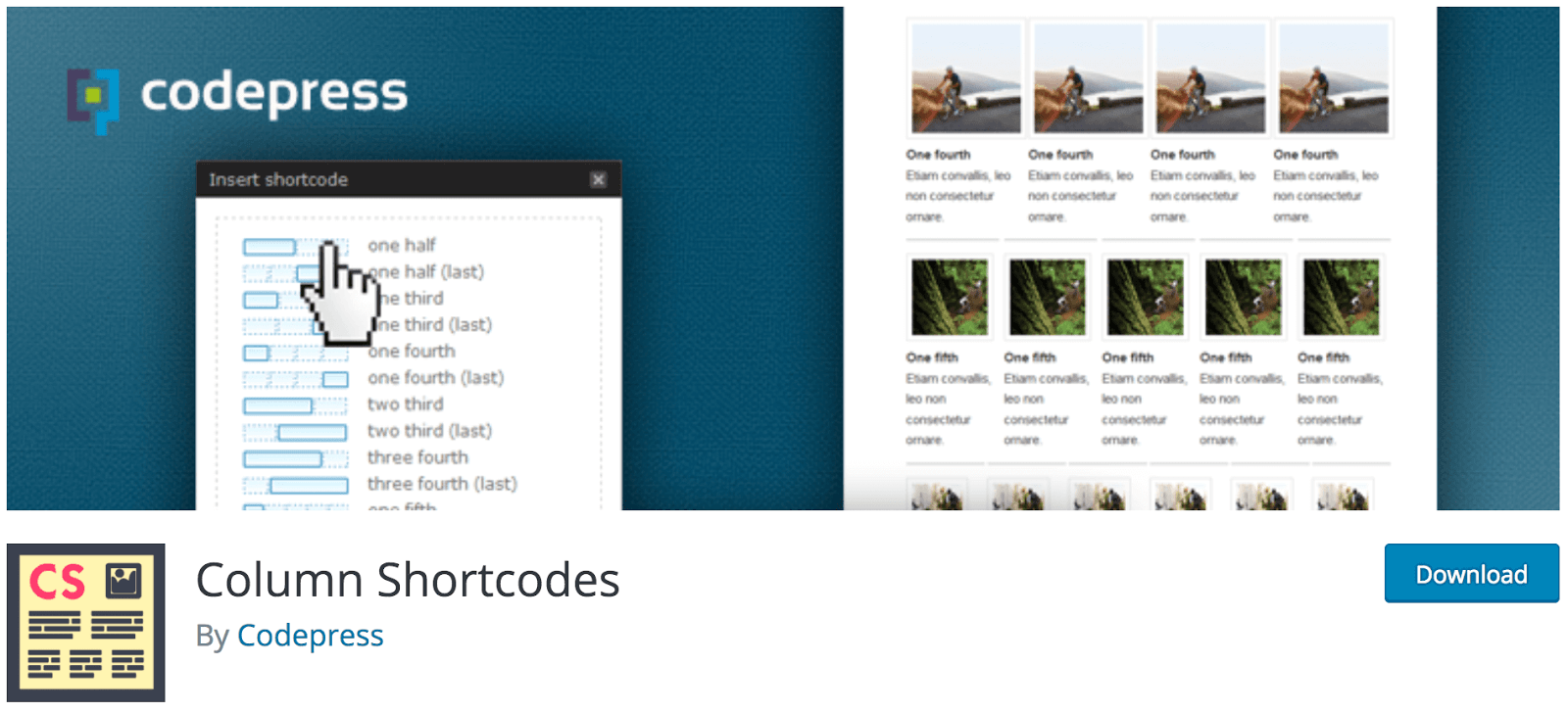
They offer just as much customization as other methods, including adjustments to the width and number of columns. While there are many available solutions, once installed and activated, they all usually follow a similar process:
- Browse to the dedicated settings page and copy the relevant shortcode from the admin panel.
- Navigate to your desired post or page and paste the shortcode wherever you want to include the column.
- Append any specific width or height code as per the plugin’s instructions.
- Repeat as necessary for any other columns you’d want to add.
Of course, whichever solution you choose will likely have its own particular quirks, so consulting its documentation should be a priority.
How to Create Columns Without Plugins
For whatever reason, you may be reluctant to install too many plugins on your website. If so, it’s possible to create WordPress columns on posts and pages without having to use a plugin at all. There are two primary methods: installing a suitable WordPress theme, or creating columns using HTML code.
WordPress Themes with Columns
Your first port of call should be to check out the WordPress.org Theme Directory. There are hundreds of themes that include columns as part of their layout, and what’s more they’re all completely free. In some cases, the theme can be tweaked from within the WordPress Customizer to offer column layouts, along with the ability to add a specific number of them and adjust their size.
You could easily filter the Theme Directory’s search results to only show themes including two columns or more, although you could also browse through the entire list.
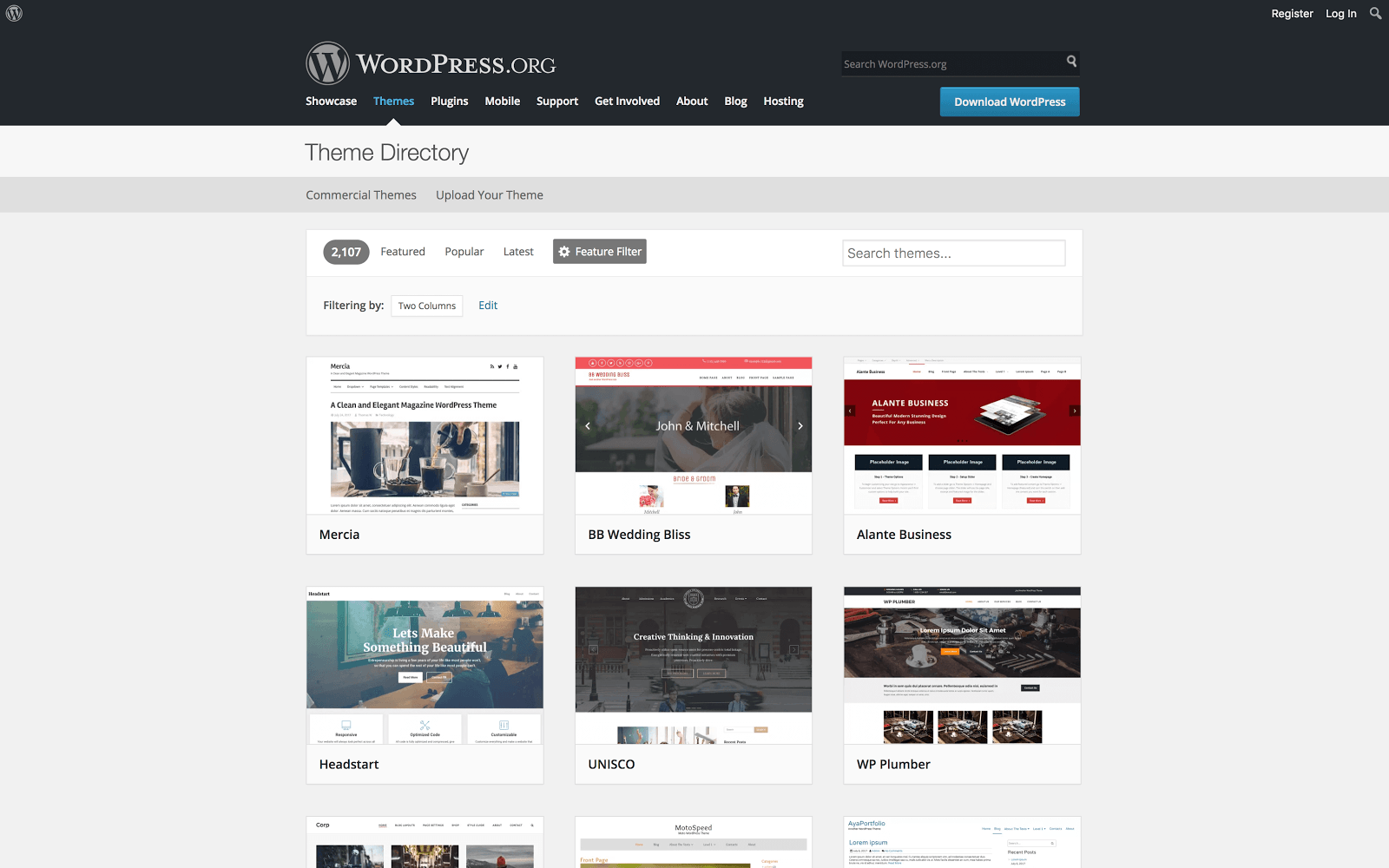
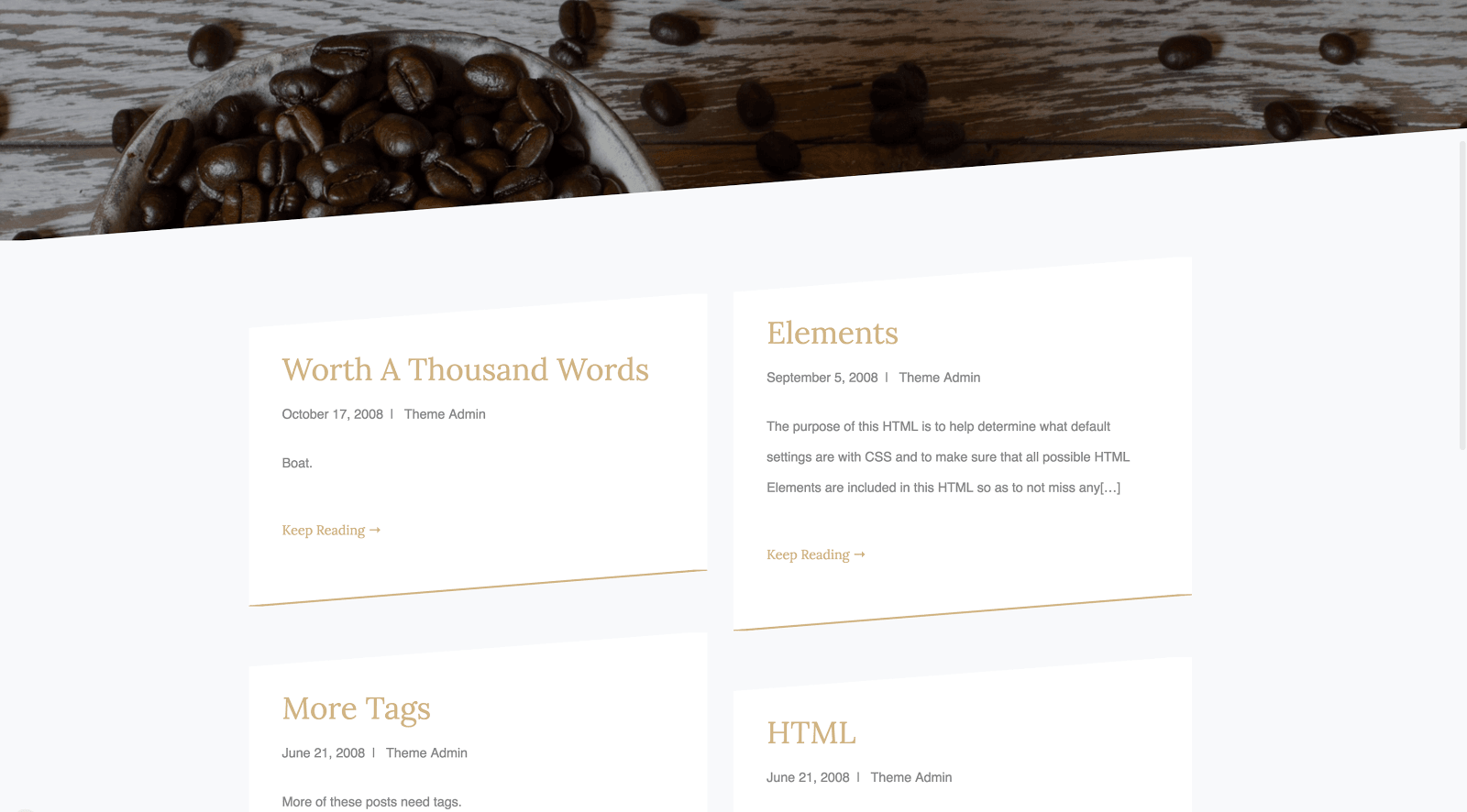
For individual examples, the espresso is a simple theme that offers a number of columns within its layout, although for a more striking design, you may want to take a look at a theme such as CoffeeIsle:
Finally, you’ll see that a lot of portfolio themes offer variable columns, as they normally need to showcase all manner of work. GalleryPress is a good example, although this is one niche that is saturated with choices, meaning you’ll have many options to choose from.
Creating Columns with HTML
Of course, you could always get your hands dirty and use HTML to create columns on your website. Despite all of the technological advances within WordPress, HTML is still one of the most effective and popular ways to add this feature to your posts and pages.
You’ll often need to use the <div> tag and style attribute when creating your columns in HTML. While the process can get complex, in short, the width, padding and float values enable you to adjust each column’s position, size, and the negative space surrounding it.
When it comes to adding columns to a WordPress website, there are a wide range of options available, such as plugins, shortcodes, dedicated WordPress themes, and HTML. WP Engine offers plenty of tips and tricks to help you improve and optimize your WordPress website, and regardless of your site’s design, quality hosting is going to be a huge part of your site’s success.