

Over the course of this article, we’ll explore what the Secure File Transfer Protocol (SFTP) is, how it works, how it compares to regular File Transfer Protocol (FTP), and how to connect to it. Let’s get started!
What Is SFTP?
SFTP has similar functionality to FTP in that it enables you to transfer files between two systems. However, SFTP uses Secure Shell (SSH) – a cryptographic protocol that enables you to send data safely over unsecured channels.
How Does SFTP Work?
Every website you’ve ever visited is stored on a server, which is basically just a computer optimized for that task. Servers can be located anywhere around the world and accessed in several different ways.
Most users only interact with the web through their browsers (and apps nowadays), which render websites using the Hypertext Transfer Protocol (HTTP) of the Hypertext Transfer Protocol Secure (HTTPS). Whenever someone attempts to access a website, his or her browser will make a request, and the server will reply to it by sending the necessary data. It’s very straightforward, but it’s not the only protocol available.
If for example you run a WordPress website, you may need to access your server directly, and that’s where FTP comes in. As we stated earlier, this acronym stands for File Transfer Protocol, and it’s very aptly named.
Connecting to a server using FTP enables you to see the underlying files and directories that power any sites hosted therein. Most importantly however, it provides you with a way to transfer those elements between the remote server and your computer.
To use FTP, you’ll need to set up a client, such as FileZilla. This type of tool enables you to connect to remote servers using a set of credentials that should be given to you by your web hosting provider.
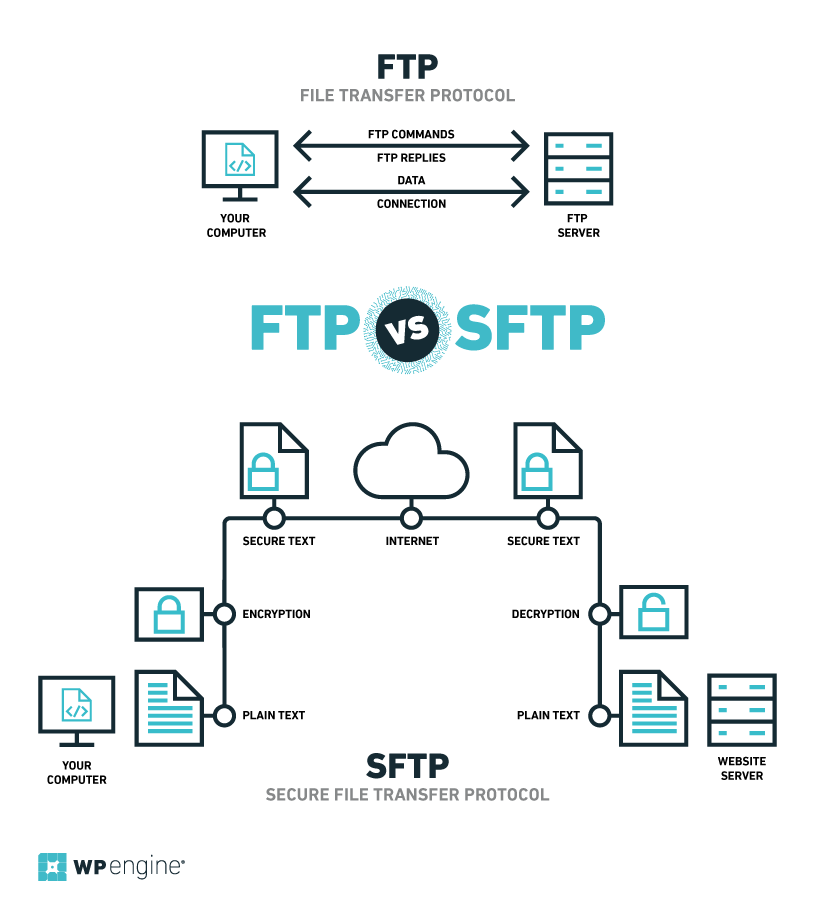
When it comes to SFTP, we’re talking about a protocol that is very similar in functionality to FTP, but more secure. It works by setting up an SSH connection between a ‘client’ (in this case your computer) and a remote server. Data travelling via an SSH connection is encrypted, thus making SFTP far more secure than FTP.
Much like FTP, you can use a client such as FileZilla to access your server via SFTP (which we’ll tell you how to do in a moment). However, it’s important to note that the two protocols are quite different, despite how similar their names and functionalities are. In the next section we’ll discuss some of their distinctions.
SFTP Vs. FTP
Despite their overall similarity, there are a few key differences when it comes to these two protocols.
For example, FTP uses two different channels (or connections) at all times – one for commands and another for data. The first channel sends commands for each action you want to take, including accessing a new folder, deleting a directory, and so on. On the other hand, the data channel is reserved solely for transferring files and other similar elements.
SFTP, on the other hand, uses a single channel for both data and commands, and every packet that goes through the SSH connection is secured via encryption. The information is ‘coded’, and only authorized parties will be able to revert it to its original, unencrypted state. Therefore, SFTP protects your information from being intercepted by malicious users.
FTP, on the other hand, does not encrypt any of the data that you transfer between a client and a server by default, which makes it more vulnerable. Considering both protocols have very similar functionalities, that fact alone is enough to make SFTP the superior choice.
How to Connect To SFTP
Despite the fact that SFTP is a separate protocol to FTP, a lot of clients for the latter also support the former. Some of our favorite picks include:
- FileZilla: An all-around solid tool that is available for every platform (we’ll use this one in our tutorial below).
- CODA: A premium text editor that doubles as an SFTP client.
- CyberDuck: This free client supports multiple protocols and it comes with some handy features, such as a text editor of its own.
- sFTPClient: A light SFTP client with multi-platform support and a Chrome extension.
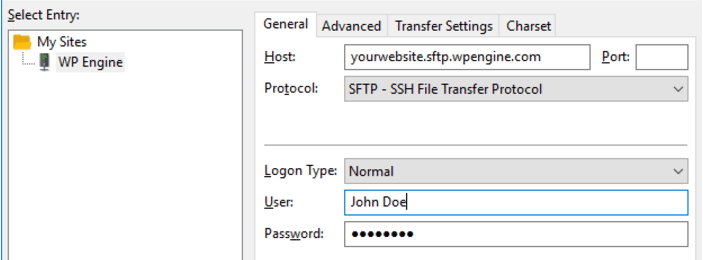
The first thing you need to do is find out what your SFTP hostname is. Most web hosts will provide you with an address (such as yourwebsite.sftp.wpengine.com), which you’ll need to enter into your SFTP client to set up a connection.
You’ll also need a username and password. Some web hosts will default these credentials to the same ones that your hosting account uses, whereas others will require you to configure dedicated SFTP credentials.
We’ll use FileZilla to show you how to connect to your server using SFTP. Although you’ll have to enter your credentials the first time around, in future FileZilla will connect automatically to save you time.
Once you’ve downloaded and installed FileZilla, open the client and access the Site Manager option under Files. Next, click on New Site in the lower left corner and fill out the hostname, username, and password fields:
Once you’re done, click on Connect and let the client work its magic. It may take a few moments for the connection to establish itself, but once it does, you’ll have access to all of your WordPress files:
Since you saved your credentials, you’ll be able to access your server via SFTP again at any time. Simply click on the Site Manager icon just below the Files tab, and select your website.
Despite the benefits that SFTP provides and its ease of use, not all web hosts make this option available for their clients. If you’re looking for a solid WordPress host that takes security seriously, check out the plans available at WP Engine!